
Website Backup Strategy: The Best Ways To Stay Out Of Trouble With Proper Backups Of Your Website
What are the best practices on backing up your WordPress site? Let’s talk about backup strategy… and I’ll go behind-the-scenes on how I manage backups for myself and my clients.
When’s the last time you gave any thought to your website’s backup strategy? Have you ever really thought about it? Do you just blindly trust your web host to deal with it for you?
Your website is hosted somewhere else… on the servers owned and controlled by some other company. But, what if something happened to them? What if something happened to the server? Without proper backups, your site just went POOF! Its gone.
That is, of course, a very extreme (and unlikely) case. Point is, however, that you need to put some thought into the backup strategy for your site. It isn’t just about the risk of loss of the site, but it could be about data loss due to malware, site hacks… or even just you screwing your site up by accident.
So, let’s talk about it…
Why You Shouldn’t Solely Rely On Your Host For Backups
Almost every web host on the face of the earth has their own backup strategy. In most cases, your web host does daily backups of your website.
In some cases, you can see the backups in your account. You can even restore from those backups on your own at any point. In some cases, you can’t see those backups and you’re just left to trust that the host is doing it.
Regardless of the fact that pretty much every web host does site backups, you do not want to rely exclusively on them. There are two reasons for this:
- There have been cases where hackers have been able to corrupt backups of a web host. While rare, it is possible. Not all web hosts handle this stuff internally in the best possible way, so if you’re blindly trusting them and they mess up, you have no recourse.
- If you don’t personally have the backups in hand, anything that happens to your web host could affect your access to your data. Your host’s account panel is down, for instance, and you can’t access anything.
In 2023, there was incident with a host called CloudNordic where they experienced a total data loss due to a ransomware attack. All sites were completely gone, including backups. Most of the time, you would be more likely to see such issues with cheaper lesser-known hosts.
Many web hosts don’t allow you to download backups directly. They are basically in there as snapshots, but you have no ability to download them and take them with you.
Any web host should have a good backup strategy. You should look for off-site backups, information on how they store backups, and ability to instantly restore.
But, you need to have your own backup strategy as well.
The 3-2-1 Rule Of Backups
The 3-2-1 rule is very well known and applies to the backup of pretty much anything, including your website. Here’s how it goes…
- 3 copies.
- Using at least 2 different locations
- 1 location must be off-site.

So, even if you’re just backing up your computer, you want at least 3 copies of your backup, spread over two locations, with 1 of them being somewhere else.
When you trust your web host for backups, you’re trusting that they’re using the 3-2-1 strategy. But, they may not be. The only way you can be sure is to do part of it yourself.
Your web host is one copy. But, what about the other two? Plus, are they archiving backups on a separate server (backup of the backups)? In most cases, unless you directly ask them, you have no idea.
A simple 3-2-1 strategy applied to your website backups would look more like this:
- Ensure your web host is doing daily backups and that they’re very easy to restore on demand.
- You run your own site backups as well, perhaps archived into a cloud storage account such as Google Drive, Dropbox, etc.
- You also ensure those backups are stored locally on your own computer (for that third copy).
There are many site backup solutions for WordPress. You’ve got cloud services like BlogVault and VaultPress. You’ve also got plugins such as UpdraftPlus and WP Vivid. I recommend you use something like this to conduct your own backups in addition to those that your web host does.
One simple and common approach is to use UpdraftPlus or WP Vivid and have it run daily backups and store on Dropbox. I’ve seen some store backups on Amazon S3. Something like this would be a very smart approach to supplement the backups your host already does and therefore complete your 3-2-1 strategy.
What Is a “Good Backup Strategy”?
The 3-2-1 rule above is first and foremost, but there are other considerations as well.
One is full backup versus incremental backups. A full backup grabs your entire WordPress site, including all of the files, the database, as well as your uploads (media library files). It is a full and completely clone of your entire site. An incremental backup will run a full backup less often, but then the more frequent backups only grab things that have changed since the last backup. Incremental backups take up less space and are easier on your server.
Then you have the issue of backup frequency. Daily is the most common, but some sites may want twice daily, hourly… or even “real time” backups. Real-time is pretty technical and difficult to pull off and most sites don’t need it. More frequent updates are sometimes desired by sites with a lot of member/order activity, such as busy membership sites or WooCommerce stores.
Here’s how I look at these two issues and how they might apply to you:
- For most people, a typical daily backup strategy is just fine.
- If you need more frequent updates, don’t make each of them full backups. You can set one schedule for full backups and a more frequent schedule for incremental.
- Set your frequency to what is the best fit for your website. For instance, if you’re taking in multiple orders per day, you may want hourly backups or, perhaps, 12-hour backups.
- “Real-time” backups are usually not necessary, but if you feel they are, it would only be for the busiest and most mission-critical sites. In such a case, I would definitely use a remote service to handle this for you versus a DIY solution using a plugin.
One thing to bear in mind about incremental backups is that it would make restoration of the site from off-site backups very difficult. Restores from incremental backups can only be done via the same system that made the backup in the first place. For this reason, backups that you download as a disaster recovery option should be full backups. Usually, that full backup will be a a collection of compressed files to restore the entire site file structure as well as an SQL backup that you could import into a blank database. The idea of a downloaded, full backup is that you could restore manually if you had to.
Backup Service or Backup Plugin?
When it comes to protecting your website, there are two major approaches you can take: a commercial, externally-managed backup service (such as BlogVault) or a self-hosted backup plugin (such as UpdraftPlus). Both have their place, but they solve different problems — and business-owners often don’t realize the trade-offs until something goes wrong.

Backup services like BlogVault run almost entirely outside your hosting environment. Your backups are taken remotely, stored remotely, and restored remotely. Nothing about the backup process depends on the health or performance of your WordPress site.

Self-hosted plugins, on the other hand, run inside your website. The backup is performed by your own server and stored wherever you configure it (local server, Amazon S3, Dropbox, etc.). This means the plugin relies on your hosting account’s resources to run successfully. If your WordPress site is completely screwed up and you cannot access your plugin, your ability to process a restore will be made much more difficult.
A remote backup service is immune from server crashes, hosting failures. malware infections, disk space issues, etc. A self-hosted plugin is running in the same exact environment it is trying to back up, so is subject to all of the same potential issues (server load, plugin conflicts, etc.).
Self-hosted plugins are popular because they’re usually cheaper and people feel like they have more control over where those backups go. But, the tradeoff of this DIY approach can be more technical headache in actually using those backups should the worst happen.
Common Site Backup Mistakes
Here are some common mistakes people make when it comes to their site backups…
- Assuming the host is doing it all for you. Again, while your host may be great and doing everything right, the only way to know for sure is for you to also be running your own backups.
- Partial backups. For instance, if you back up the database only and not the files, then you don’t actually have a full backup.
- Storing backups on the same server as your live site. I see this commonly on virtual private servers and cheap hosting environments. People think there are backups happening (and there are), but corruption of the server would mean both your site AND the backups are lost because you’re keeping it all in the same spot.
- Not testing restores. A backup is only as good as it is usable. You need to ensure any backup can be restored. If you’re storing backups off-site, look at the format of those backups and ensure they would be usable if you needed them.
- Mismatched Backup Frequency. Doing hourly updates on a site which doesn’t change too often would be overkill. On the flip side, doing weekly backups on a site which is getting new leads/orders every day would be not enough. You need to match the frequency to the nature of the site.
My Backup Strategy I Use For Myself And My Clients
When it comes to my own website as well as all of the sites I manage as part of Concierge, I put a lot of thought into having a holistic and reliable backup strategy. In fact, part of being in Concierge is that you know it is being taken care of fully and you don’t have to think about it.
So, let me share with you how I personally handle website backups.
First, every site is backed up by BlogVault. I want the reliability of a dedicated backup solution like this without the drawbacks of using a WordPress plugin to do it. When I see agencies using UpDraftPlus for their backups, part of my cringes. 🤪 BlogVault is far more reliable and usable if the need arises. BlogVault would run my clients $99/year if they were to use it for themselves, but I can provide that same service for them baked into Concierge.
But, obviously, I don’t stop with just BlogVault….
I have client websites hosted on both Rocket.net hosting (which does their own daily backups) as well as high-powered virtual private servers that I manage via xCloud. Part of hosting on a VPS is that you need to ensure backups are taking place. You don’t have that baked in daily backup like you would with Rocket. So, here’s how I handle it…
- Each site runs it’s own backup schedule, defined in xCloud. A few sites that barely ever change run full backups weekly. Most sites are being backed up every single day. This is in addition to the daily backups BlogVault is already doing.
- I just say no to local backups, because that would store the backups on my servers and defeat the point. So, I have integrated with Cloudflare R2 storage (Cloudflare’s equivalent of Amazon S3) to receive all backups. This ensures all site backups are safely backed up in the cloud by a reliable company like Cloudflare.
- For extra redundancy, I also back up Cloudflare R2 to my local NAS right here in my office. I use a Synology NAS in my office and it is set to mirror Cloudflare R2 every day (using Cloud Sync). On top of that, my NAS is also backed up to both a USB external drive as well as an encrypted cloud backup at Synology C2.
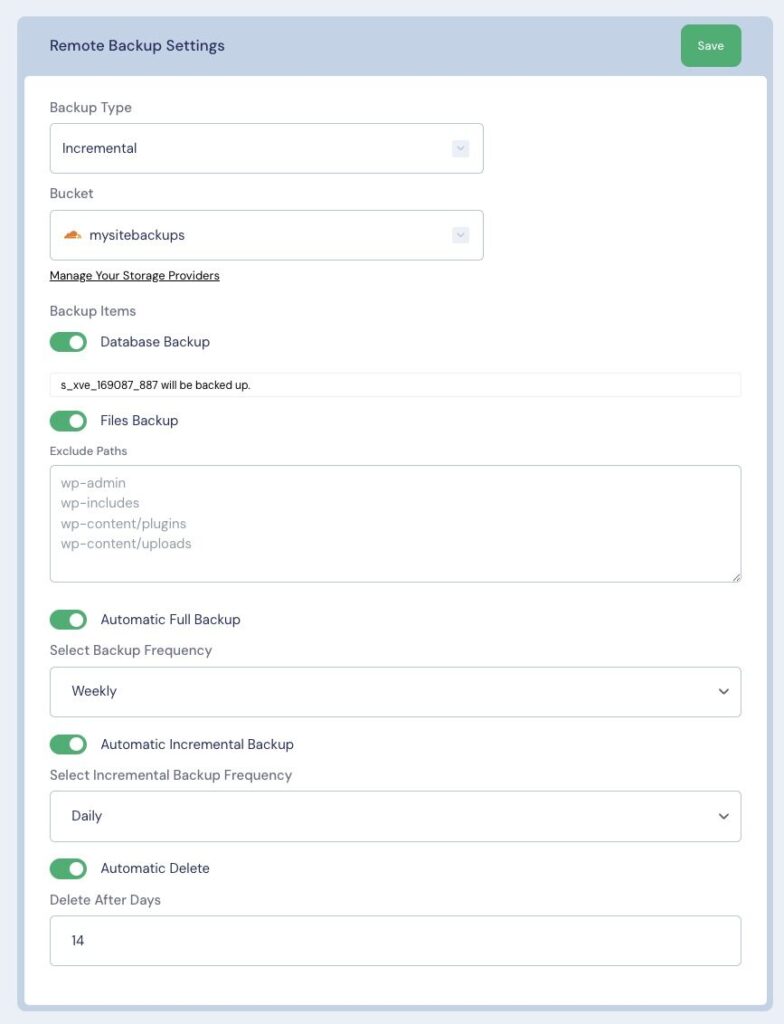
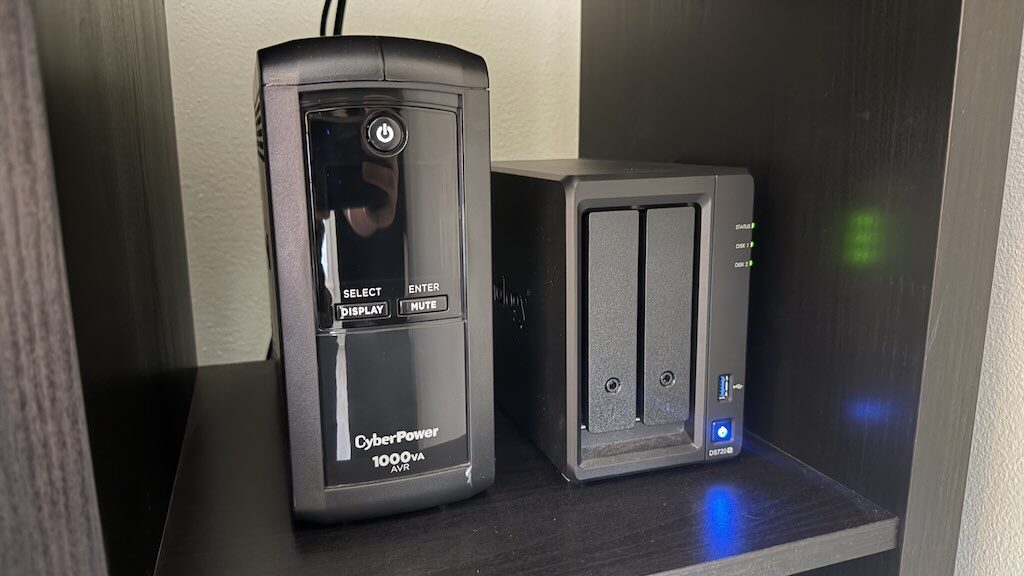
So, as you can see, I’ve built in a lot of redundancy here and I’ve gone past the 3-2-1 strategy. All sites are backed up in multiple locations: BlogVault, Cloudflare R2, my office NAS (with a RAID array, so there are multiple drives mirroring each other), a USB drive (for emergency if the NAS got totally corrupted), and Synology C2. That’s 5 separate locations…. 6 if you count the individual drives in my RAID array.
I don’t mess around. 🤪
The use of a NAS in the office makes local backups of sites much easier. It allows me to set it up to run on automatic rather than having to manually download backups from the cloud. And, being the digital sovereignty guy, if I don’t have backups where I can touch them, it doesn’t feel right. 🤣
Your Action List For Site Backups
Site backups are highly important. The liklihood of completely losing your site isn’t very high, although it does happen. The more likely scenario is that you find something was hacked, that you accidently deleted something important, or a flawed plugin update is screwing up WordPress and you need a quick fix to the most recent restore point.
Site backups are insurance. You need it. The good news is… once you take the time to ensure you have a good backup strategy in place, it is pretty much “set it and forget it”. This doesn’t have to take a lot of time.
So, here’s what I would recommend that you do:
- Ensure your web host is taking daily site backups. This is an absolute minimum. You may even want to research (or ask them) about their internal practices, such as where they store the backups, etc.
- Ensure you have your own backup strategy in place in addition to your host. While BlogVault or some other remote service is the best, a plugin based option works for many sites (especially the ones which aren’t super busy or mission-critical). If you go the plugin route, there are many options, but UpdraftPlus is one I have direct experience with and works pretty well.
- Ensure you have SOME kind of strategy in place for backups “in house”. In other words, backups you can have on your own hard drive. It doesn’t need to be an automated setup like I have with my NAS. It could be as simple as a recurring reminder for you to go in and manually download a backup to your hard drive.
Again, always consider the 3-2-1 strategy. That’s your goal.
Your web host alone is 1 backup in 1 location. It is not a complete 3-2-1 strategy. To complete it, you need at least 2 other copies, and 1 of them needs to be somewhere other than your web host.
Take the time and get it all in order. Then…. get on with things and focus on growing your business. 😎
Popular Right Now

What If Your Website Was Just… Handled?
I manage WordPress sites for creators and small teams who don’t want to fight tech anymore. Hosting, updates, security, performance — plus a real human you can ask anything.
Tools, checklists, and resources for solopreneurs who want to spend less time on tech — and more time growing. With more tools coming regularly. 😎

