


So, one’s usage of AI comes on a spectrum. From the beginner level to… full business orchestration.
People usually begin by chatting with it. They open up a chat session, ask questions and read the responses. Every conversation starts from scratch. Essentially, they’re using it as a glorified search engine.
Then, people evolve up to trying to use AI to get something useful done. Perhaps they’ll connect a few tools. All too often, though, people find themselves getting a little frustrated because it seems like AI is forgetting things and you need to explain things to it repetitively.
Then, you get to the point where things feel really dialed in. AI knows you. It knows your business. It knows how to do things. It does work reliably and it feels more like a co-worker than something you have to constantly coach through everything.
The funny thing is… the same exact AI with the same exact plan can do all of this. That same $20/mo plan with ChatGPT or Claude can feel really lame… or super smart and useful.
The difference is found in how you use the basic building blocks… the features sitting right there in the app that most people never touch.
Here’s the good news. There are really only about 8 of them. And they’re basically the same across all the major AI tools. The confusing part is that every company gives them a different name, puts them in a different menu, and changes both every few months.
So in this post, I’m going to walk through each building block: what it is, what it’s for, and a few of the basics. These basic blocks can be called something a little different depending on the AI tool you’re using, but it is pretty easy to figure out.
Let’s dive in.
The Quick Version
If you just want the map, here it is. 8 building blocks, in roughly the order I’d set them up:
- Custom instructions: tell it who you are, once.
- Memory: it remembers things between chats.
- Projects: a workspace for each ongoing job.
- Skills: teach it how you do a specific task.
- Connectors: plug it into your other tools.
- Plugins: bundles that add a whole capability at once.
- Agents: hand off an entire job, not just a question.
- Scheduled tasks: work that runs without you.
The first three are about the AI knowing things. The next three are about it being able to reach things. The last two are about it doing things on its own. Each layer builds on the one before.
1. Custom Instructions: Tell It Who You Are, Once
This is the easiest win in all of AI, and most people skip it.
Custom instructions are a short set of background notes the AI reads before every single conversation. You write them one time. From then on, every chat starts with the AI already knowing the basics.
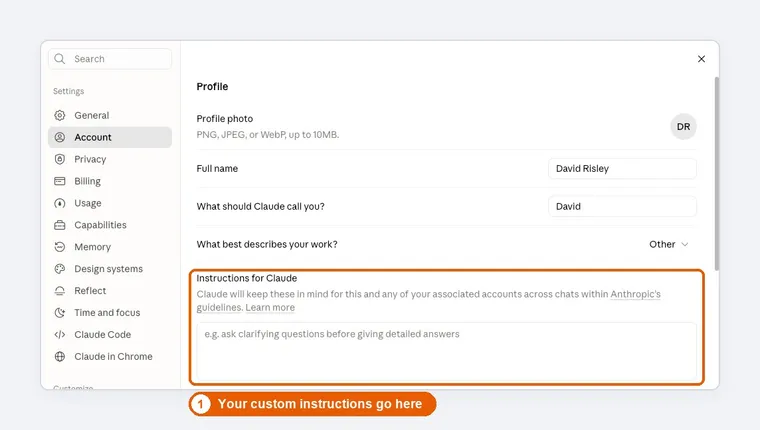
What goes in there? Well, there’s no set rule about it – and that’s what can trip people up. Sometimes people end up packing all kinds of junk into those custom instructions. The idea is to keep it pretty high-level, but enough context so you don’t have to keep reminding it of the basics.
Things to include would be:
- Role + primary work or domain (e.g., “I’m a WordPress consultant who builds and maintains client sites and uses AI heavily for automation and content”).
- Expertise level you want assumed (“Assume intermediate technical knowledge; don’t over-explain basic concepts”).
- Audience or context you usually write for or serve.
- Key tools, stack, or recurring constraints that shape answers (e.g., preferred frameworks, platforms, currency/units, language variant).
- Primary ways you use AI (content, code, research, emails, planning, etc.) so it leans toward useful formats by default.
Things you want to avoid would be:
- Writing a full bio or background. AI doesn’t care. 🤪
- Sensitive information, credentials, client names, finances, etc.
- Project-specific details or temporary context. That’s best left to other places.
- Vague statements (like “I’m creative and hardworking.”)
You might also want to include your preferences on how you want AI to talk to you. Things like:
- Lead with the answer. “Start with the direct answer or recommendation, then give supporting detail.”
- Default length and structure. “Prefer concise responses. Use bullet points or numbered lists for anything with 3+ items. Use tables for comparisons. Expand only when I ask.”
- Tone. “Direct and practical. Skip filler openings (‘Certainly!’, ‘Great question!’), restating my question, and unnecessary disclaimers or apologies.”
- Uncertainty and assumptions. “If something important is missing or ambiguous, ask a short clarifying question before answering. Label uncertainty clearly instead of guessing.”
- Format rules for common outputs. Code style, email length, heading usage, citation habits, etc.
- What to avoid. Specific AI-isms, banned words/phrases, or behaviors you keep correcting (this is often more effective than positive instructions alone).
To help get started, here’s a simple starter template you could use. Adapt accordingly. 😇
About me:
I’m a [role] focused on [primary work/domain]. I mainly use AI for [use cases]. Assume [beginner/intermediate/advanced] knowledge in [relevant areas]. My usual audience is [description].

How to respond:
- Lead with the direct answer or recommendation, then supporting detail.
- Default to concise responses with clear structure (bullets/numbered lists for parallel items, tables for comparisons).
- Use a direct, practical tone. Avoid filler openings, restating the question, and unnecessary disclaimers.
- When something important is missing or ambiguous, ask one short clarifying question before answering.
- Label uncertainty instead of guessing. Do not invent facts, numbers, or sources.
- [Any specific format rules or things to avoid]
2. Memory: It Remembers Things Between Chats
Memory is the AI’s long-term notebook. Things you mention in one conversation can carry over into future ones. Tell it you have a membership site, and next week it still knows. This is how you solve the problem of your AI seeming to forget things.
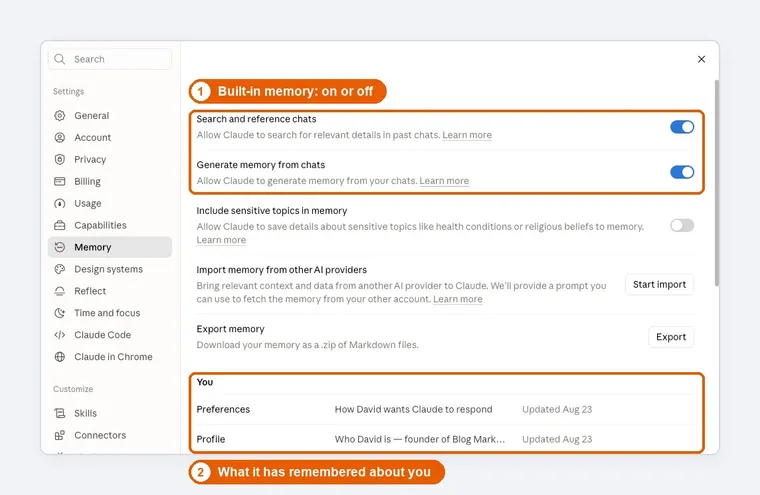
Now, the idea of AI memory has several layers to it. And how they work is different. They are:
- The native platform memory. The tool (ChatGPT, Claude, etc.) has its own memory which it manages on its own automatically. It decides what to store, where to store it, and when. You have limited visibility on it and it is “stuck” to that particular platform.
- Explicit instructions to “remember this”. You can also give your AI specific instructions to remember certain things. It is still using the native platform memory, but you’re just prompting it specifically on things you want it not to forget.
- External, user-controlled memory. This is when you set up a persistent knowledge base for your AI that exists outside the platform – and then tell your AI specifically to use it. Personally, I vastly prefer this because it means I can do it my own way, see everything, and ensure that all of that context is not “stuck” in any particular AI tool.
Built-in platform memory is convenient, but I wouldn’t build my business on that.
Think about what it actually is. It’s a list of notes the AI decided to take about you, stored on that company’s servers, in a format you can’t really organize. You can’t easily see why it remembered one thing and not another. It only works inside that one tool. And if you ever switch to a different AI (and at the rate this stuff is changing, you probably will), all of it stays behind.
So I do it differently. I keep my business’s memory in my own files, outside of any AI tool.
At the core, all you need to do this is a folder on your computer. Literally, the memory for your AI is just a folder with files in it that AI can access. And over time, you organize the things in that folder (with the help of AI) so it knows exactly where to find things and how to add to it.
Now, for myself, I have 2 main ways of doing this on my own computer. They are:
- The Vault. That’s just what I call it, but it’s where all of my business knowledge lives: what the business does, my offers and prices, my voice and writing style, how I do specific tasks, notes on each client, decisions I’ve made and why. I keep it in Obsidian, which is a note-taking app. More on that in a bit.
- AIOS. This is short for AI Operating System. That sounds fancier than it is. It’s a structured set of folders and files that tell the AI how to work with me: where things are, how to access my different tools, the rules I want it to follow, and the skills it can use. It also stores AI outputs, info on how to use the various connectors, etc.
So, for me, the Vault is the memory and AIOS is my working folder. When I spin up a new chat session in my AI tool of choice, it is pinned to my AIOS folder as its working folder. And the AI knows (in its memory) exactly what my Vault is and where to find it.
To be clear, Obsidian is just what I use. It’s not the only way to do this. A folder of documents in Google Drive or Dropbox works. So does a set of plain text files. The tool matters a lot less than the principle: your knowledge sits in files you control, organized in a way that makes sense, where any AI can get to it. Obsidian happens to be pretty native to AI because it inherently works on markdown files, so AI can work with it VERY quickly.
And here’s a twist you might not expect. I do still use the built-in memory… I just use it differently. Instead of letting it hold my business knowledge, I use it to point at my own. It remembers things like where the Vault is, how it’s organized, and what I mean when I use certain words. So when I say “check the Vault,” the AI knows exactly what I’m talking about and where to look. The built-in memory is the signpost. My own files are the actual memory.
Others may have other ways of doing this. Above is how I do it and it works great.
It also means that regardless of which AI tool I am using (Claude, Hermes, Grok Bot, etc.), I don’t have to re-invent the wheel every time. Because all of this memory and context is stored OUTSIDE the tool. I point each AI platform at the same memory and they can also pretty much “think” with the same info. They all “know” me.
Now, if you’re just building this out for yourself, don’t get overwhelmed. It isn’t as if you have to do a bunch of manual labor to set up this memory setup with some smart structure before AI can use it. You can literally have AI do much of it for you.
The 2 main components are:
- A working folder to work in (for me, it is AIOS).
- A place to store memory. Just a folder on your hard drive, basically. For me, I just point it at the folder Obsidian uses.
Then, tell your AI about those locations. Tell it what you intend to do there. Tell it to store that in its own platform memory. Then, work out a structure which makes sense.
Client records? Maybe in a sub-folder called “clients”. SOPs? Maybe in a sub-folder called “sop”. You and your AI can come up with a structure which makes sense to you. It is just a folder.
Owning your AI’s memory is really part of a bigger idea I’ve been talking about for years: owning the pieces of your business instead of renting them from someone else’s platform. If that resonates, this is worth your time:
3. Projects: A Workspace for Each Ongoing Job
If you mostly use AI through the regular chat window, this is the building block that’ll make the biggest difference.
A project is a dedicated workspace for one area of your business. You give it its own instructions, upload the files that matter for that job, and every conversation you start inside that project has all of it available automatically.
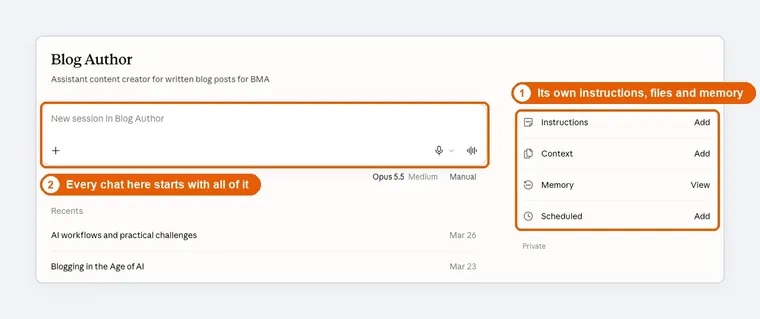
Think about the things you do over and over:
- Your newsletter. A project with your voice guide, your last few issues, and your format rules.
- A course you’re building. The outline, your research, your lesson drafts.
- Customer support. Your FAQ, your policies, examples of how you like to reply.
- A specific client. Their background, their site details, your notes from past calls.
Without a project, you re-explain all of that every time. With one, you just open it and start working. It’s the difference between hiring a temp who shows up cold every morning, and working with someone who already knows the file.
Now, it is important also to understand that how projects work will differ depending on the interface through which you’re using your AI.
A traditional “Project” applies to chat-style interfaces. It comes in when you’re using Claude.ai, ChatGPT, or Claude Cowork. These are chat-style interfaces and you’ll usually see a Projects section where you can set up project-specific instructions, upload files as knowledge, etc.
Then, there is the filesystem version of Projects. This comes in when you’re using something like Claude Code (which I’m a massive fan of, personally). You’re usually using the side of AI which people think of for coding… but you’re certainly not limited to coding. For these kinds of interfaces, the filesystem itself (based on the working folder you open up that session in) becomes the project.
Both approaches are different user interfaces for essentially the same functionality. Except, in one, you’re setting up the project via an interface in your AI tool. And with the other, you’re spinning up an AI session with a particular folder as your working directory.
Inside that working directory will be any files the AI uses for that project, other instructions and skills, etc. Often, you’ll also find markdown files with specific filenames that give instructions to the AI. Something like CLAUDE.md or AGENTS.md. These serve as the project instructions for AI and tell it where all the supporting files are located.
Projects allow you to organize your work into clear buckets.
4. Skills: Teach It How You Do a Specific Task
This is where things start getting powerful.
A skill is a packaged set of instructions for doing one particular job your way. It’s basically a standard operating procedure for your AI. The AI doesn’t load it into every conversation. It pulls it in only when the task at hand calls for it.
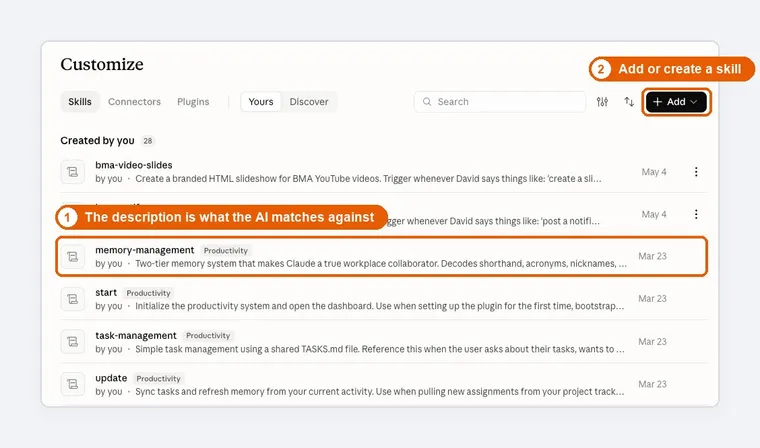
The reason that matters: you can have dozens of skills without bogging anything down. The AI glances at a short description of each one and grabs the right one when it’s needed. This is super useful because it doesn’t have to fill up your context window on every turn.
In my own business, skills are a huge part of how AI does real work. I’ve got one for preparing my weekly newsletter. One for publishing a new video. One for onboarding a new client. Each one spells out the steps, the rules, and the checks, exactly the way I’d explain it to a new assistant. So when I say “let’s prep this week’s newsletter,” it already knows the whole routine.
Here’s the test for whether something should be a skill. If you find yourself explaining the same process to AI more than twice… that’s a skill waiting to be written. And you don’t even have to write it yourself. Walk the AI through the process once, then ask it to turn that into a skill.
One more thing that makes skills worth learning: they’ve become an open standard. A skill is ultimately just a folder with a text file of instructions in it. That means it isn’t necessarily locked into one company’s product.
Some best practices to keep in mind regarding skills:
- One skill, one job. Focused skills compose better and trigger more reliably than large multi-purpose ones.
- Write the description carefully. This is what the model matches against. Include the kinds of phrases you actually type and the file types or situations where it should fire. Vague descriptions (“helps with documents”) rarely activate.
- Keep the main file lean. Put the core procedure in SKILL.md and move detailed references, examples, or scripts into linked files so they load only when needed.
- Include a concrete example. An input/output pair usually teaches the desired result better than abstract rules alone.
- Start by noticing the corrections. The most durable skills come from observing what the model consistently gets wrong or does differently than you want, then encoding only those fixes rather than writing a full tutorial from scratch.
- Test the trigger. Run a few real prompts that should activate the skill and a few that shouldn’t. Adjust the description if it fires too often or too rarely.
The big thing here to keep in mind is… AI can help you create these skills. Don’t get overwhelmed with the idea that you have to manually create and manage a bunch of files and folders for this.
Every skill I’ve ever created I did it with the help of AI. I just tell it that we’re going to go through something together, work out the kinks, then I want it all codified into a skill for future use. We go through it. I correct things along the way. And it makes the skill. In future runs, if I notice anything that is off, I just correct it and tell it to modify the skill.
5. Connectors: Plug It Into Your Other Tools
Everything up to this point makes the AI smarter about you. This is the block that lets it reach outside the chat window. This is how you make AI actually do real work.
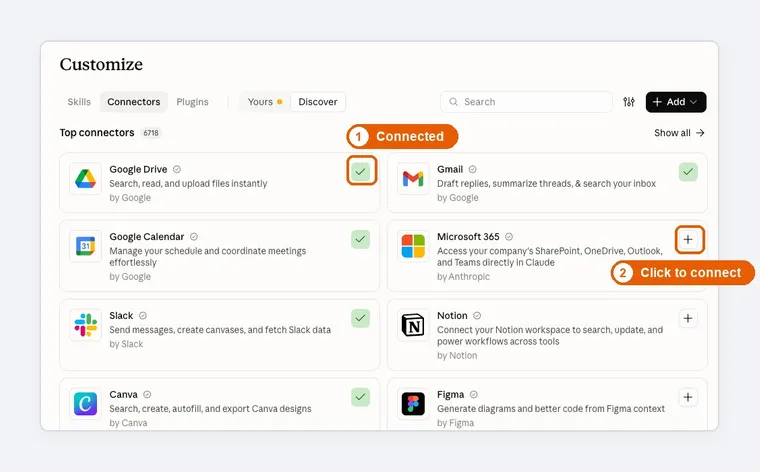
A connector links your AI to another service: your email, your calendar, Google Drive, your project management tool, your WordPress site. Once it’s connected, the AI can look things up there. And depending on what you allow, it can take actions there too.
“What’s on my calendar Thursday?” “Find the email from my accountant about the Q3 numbers.” “Create a task for each of these five things.” “Which plugins on my site need updates?”
Under the hood, most of these connections now run on a shared standard called MCP, now overseen by an independent foundation rather than any one company. You don’t need to understand how it works. The practical upshot is that when a tool you use says it has “an MCP server,” you can very likely connect it to whichever AI you use.
Your AI tool likely has a pre-built library of connectors. You can just browse the library and use the ones you want. Go through the authorization process to connect it to your account and you’re good to go. In other instances, you may need to use your own custom connectors because a pre-built one wasn’t in the library. For these, you’ll use a custom MCP server URL (usually provided by the service you’re connecting to) or, in some cases, actual API keys.
This is also the point where you need to slow down and think. A few rules I follow:
- Start read-only. Let it look before you let it touch.
- Connect one thing at a time. Get comfortable with it before adding the next. No need to go on a big sprint of connecting everything under the sun until you know how you’re going to use it.
- Check the permissions. Most connectors let you require approval before the AI takes an action. Leave that on.
- Review what’s connected every so often, and disconnect what you’re not using.
6. Plugins: Bundles That Add a Whole Capability at Once
I’ll be honest: “plugin” is the muddiest word on this list. It has meant different things at different times, and it means something else entirely in WordPress.
In the AI world today, the most useful way to think of a plugin is as a bundle. Instead of setting up 5 skills and 3 connectors one by one, you install a plugin and get the whole set in one step. A “marketing” plugin might include skills for writing campaign briefs and email sequences, plus the connectors those skills rely on.
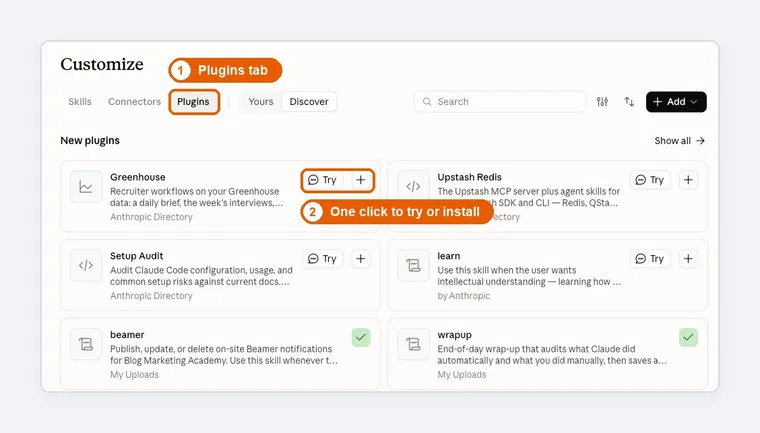
For most solopreneurs, plugins are a convenience, not a necessity. They’re a quick way to add a capability someone else has already packaged up. Just apply the same judgment you would to a WordPress plugin: who made it, what does it have access to, and do you actually need it?
Honestly, I don’t use a lot of plugins. I tend to build things my own way.
If you want to try using plugins, here are a few best practices to keep in mind:
- Prefer focused plugins. A plugin that does one job well is easier to reason about and less likely to add unused tools or instructions to every session. Generic plugins like “Marketing” usually bundle things you’ll never use.
- Review what it contains before installing. Especially in Claude Code, plugins can include MCP servers and hooks that run with the same permissions as other local tools. Only install from sources you trust.
- Use them as a starting point, not the final configuration. After installing, you can often disable individual components or override behaviors with your own skills or CLAUDE.md rules.
Also, bear in mind that the word “Plugins” has tended to shift in meaning as AI evolves. Some now call it “extensions”. Others use the word to refer to other components, like skills and connectors.
7. Agents: Hand Off an Entire Job
Up to now, you’ve still been driving. You ask, it answers. You ask again. In other words, nothing really happens unless you tell it to do first and prompt it. A lot of my day-to-day usage of AI still works like that.
An agent changes that. You give it a goal, and it works through the steps on its own, using its skills and connectors along the way, and comes back when it’s done (or when it needs you).
Essentially, an agent is a language model that is given a goal and then runs in a loop – with certain tools at hand – until the goal is accomplished. While it loops, it will observe outputs, compare to the goal, then reason through things. It will keep looping on it until it achieves that goal or hits a limit.
Now, usage of agents can seem a little confusing. In most tools, there’s no “Agents” section. No specific button that says “Create an Agent”. So, it is important to think of an agent as more of a mode of operation, not really a specific thing you spin up manually.
In most cases, spinning up agents is something that your AI tool of choice will do on its own as part of the work. In your chat interface, you’ll give it a goal. And the tool will then spin up agents behind the scenes to make it happen. Sometimes, it will even spin up multiple agents simultaneously that run in parallel – or even sub-agents where one agent will spin off tasks into smaller agents. Point is…
An agent is not usually a separate thing you create and then launch. It is a way of working. In chat you drive every step. When you switch to an agentic mode (Cowork in the Claude app, or simply giving Claude Code a multi-step task), you hand over a goal and the system plans and acts across multiple steps, using tools and checking results as it goes.
Chat remains the primary user interface. You describe the outcome you want. The tool decides when to work agentically and, when helpful, spins up agents or sub-agents behind the scenes to get the job done. The end user does not need to manage that layer for normal use.
That said, you’ll see agentic work most clearly in the work-oriented versions of these tools, the ones built to work this way natively. That’d be Claude Cowork and Claude Code… or ChatGPT’s agent mode or Codex if you are on the OpenAI side of things.
Wondering which jobs in your own business you could hand off to an agent? I built a free tool that helps you figure that out in about 10 minutes.
8. Scheduled Tasks: Work That Runs Without You
The last block is the simplest to explain. A scheduled task is a job the AI does on a timer, without you asking.
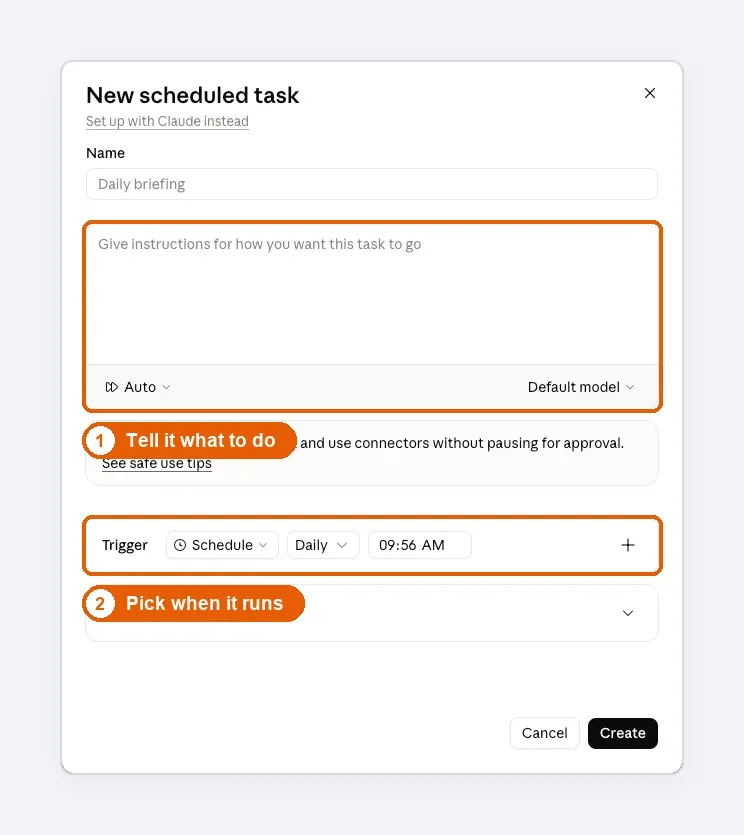
Every Monday at 7am, summarize last week’s sales and email it to me. Every morning, check my calendar and inbox and give me a short briefing. On the first of the month, list every subscription that renews in the next 30 days.
On its own, a scheduled task is basically a prompt with an alarm clock. Combined with skills and connectors, it becomes something else: a piece of your business that just… happens. The skill holds the process. The connectors supply the data. The schedule makes it run.
This is the block that finally gets you out of the loop for routine work. Not every task belongs here. But for anything you do on a regular schedule that follows the same steps every time, it’s worth asking whether you need to be the one doing it.
Scheduled tasks (often also called Routines) can be built with the help of AI (of course). Just like a skill. You literally just tell your AI what you want to happen and when you want it to happen. And you set up all the building blocks with the help of AI. It will create its own scheduled task to make things happen when you want it to.
To give you some examples, here’s some scheduled tasks that I have running automatically in my own business:
- A daily sales report (sent to my email). Pulls right out of WooCommerce.
- Inbox triage. Every 30 minutes, it scans my inbox and filters out the noise. It never deletes anything, but instead moves it to a folder called “AI Noise”. It follows rules I define in plain English sitting in my Vault.
- Daily Night Log. Every evening, all of my AI tools are scheduled to go through all of the sessions done that day, summarize what was done, and put it into the daily notes in Obsidian (my Vault). This way I have an automatic record of everything we work on.
- List Reengagement. I have a series of scheduled tasks that work with FluentCRM (via connectors) to take unengaged people and put them into a re-engagement sequence, remove and tag them if/when they reengage, remove people who are not engaged, and send me a report.
- Daily Plan. Each morning, it will review my tasks, my projects, my calendar. It also applies a set of standing orders I define in plain-English. And it will generate my to-do list and areas of focus for the day.
I could go on. I have a lot of them. 😇 But, you get the idea.
This is where you can truly automate entire portions of your business.
How They Stack Together
Any one of these blocks is useful. The real payoff comes from stacking them.
Let me show you with something every solopreneur deals with: the weekly newsletter.
With no building blocks, you open a blank chat, explain what your newsletter is, paste in an old issue, describe your tone, ask for a draft, fix everything it got wrong, and repeat the whole thing next week.
Add a project, and your voice guide, past issues and format rules are already loaded. You skip straight to “here’s what I want to cover this week.”
Add a skill, and it follows your actual process: the sections in the right order, the length you like, the checks you run before sending. Same quality every week without you spelling it out.
Add connectors, and it can pull this week’s material itself… your new blog posts from your site, the links you saved, last issue’s open and click numbers.
Make it a scheduled task, and every Thursday morning there’s a draft waiting for you, built from this week’s material, in your format, ready for you to add the parts only you can write.
You’re still the one who decides what’s worth saying. You still write the personal parts and make the final call. But the mechanical 80% of the job got done without you.
That’s the pattern for pretty much everything. Know → reach → do. Each block removes one more thing you used to have to do by hand.
Where to Start
Please don’t try to set up all eight this weekend. That’s a recipe for a frustrating Saturday and nothing to show for it.
Here’s the order I’d go in:
- Today: custom instructions. Five minutes. Every chat gets better immediately.
- This week: one “about my business” document and one project. Write down the things you keep re-explaining to AI, and save it somewhere you control. Then pick the thing you use AI for most, build a project around it, and upload that document along with any other files it needs.
- This month: one connector. Just one. Your calendar or your Google Drive is a safe place to start. Read-only if you can.
- When you catch yourself repeating a process: your first skill.
- Once all that feels normal: agents and scheduled tasks.
Each step makes the next one easier, because you’ll understand what the AI needs in order to be useful.
And remember… AI is pretty good at AI. 🤪 Which means, you can literally work with your AI to build this stuff. My AI systems are pretty advanced now, yet almost all of it was done via a chat window with me telling AI what I wanted and working through the details.
So, the concepts are FAR more important here than any real technical knowledge. You don’t have to be a nerd or a programmer to figure this stuff out.
Not sure which parts of your business to point all this at first? That’s exactly what I built this for: