
2026 Official Hosting Recommendation: How to Beat Premium WordPress Hosts on Speed and Price
To optimize the performance of your website, your web hosting needs to be the right match for your particular needs. A “one size fits all” approach isn’t efficient. Here’s what I recommend you do instead…

2026 Official Hosting Recommendation – TL;DR
My top recommendation is not a typical “managed WordPress host.”
Instead of paying $30/mo per site (or more) for a one-size-fits-all solution, I recommend a tailored VPS + modern control panel setup that gives you:
- Significantly better performance than most premium hosts
- Full control over the environment (perfect website/hosting fit)
- Dramatically lower cost and a higher cost/performance ratio
- Ability to run one site or dozens on the same server
- Easy scaling as your needs grow
My current personal stack (and what I use for all client sites):
Hetzner VPS + xCloud control panel (free for one server / up to 10 sites)
This approach works brilliantly for tiny blogs all the way up to large membership sites, BuddyBoss communities, and WooCommerce stores.
Full guide below: exact providers, server sizing rules, must-change settings, and all the details. You will not look at hosting the same way after you’ve tried this.
Over the many years I’ve run this site, I’ve used and recommended many different hosting companies. From WP Engine, to WPX Hosting, to Cloudways, to Rocket.net…. and now moving out of there, too.
I also know that web hosting recommendations are often (too often) tainted by affiliate marketing. Very often, people are recommending hosts that pay out the most in affiliate commissions. I still see people recommending Bluehost despite the fact that they’re one of the worst hosting companies out there (in my opinion). Why? Well, because they pay affiliates well.
So, I wanted to create one, central resource where I cover my top current hosting recommendation. If/when it changes, that resource will be updated. And this very article is that resource.
Ironically, my top recommendation is not any typical hosting company at all. It is pretty different than what you may expect and be used to. And, I sure as hell don’t recommend this approach because of the affiliate commissions. 🤪
My goal here is to provide top-shelf website performance for the least amount of money. As well as to have you in CONTROL. For us to do that, we need to get more granular than simply recommending a particular hosting company.
The Problem With Typical Web Hosts
Most hosting recommendations either spit out the name of a particular company as “the best”, or they run a bunch of site benchmarks from different hosts and publish a comparison with a “winner”. Then, people who don’t know any better will blindly trust that.
The truth is often pretty different than that. And such reviews and comparisons are not as valuable as you may think.
Case in point… Rocket.net is considered to be one of the top web hosts available for WordPress right now. And, they are truly good. One of the best companies I’ve ever worked with. And yet… I am migrating my sites and my client sites away from Rocket.
Why would it be that some sites perform VERY well on Rocket.net while others did not? Why is it that some people will say that certain web hosts perform very well while others will say that those very same hosting companies leave something to be desired?
That reason comes down to “fit”. Let’s call it… website/hosting fit. In business, we often talk about product/market fit…. well here, let’s talk about website/hosting fit. 😎
Website/Hosting Fit
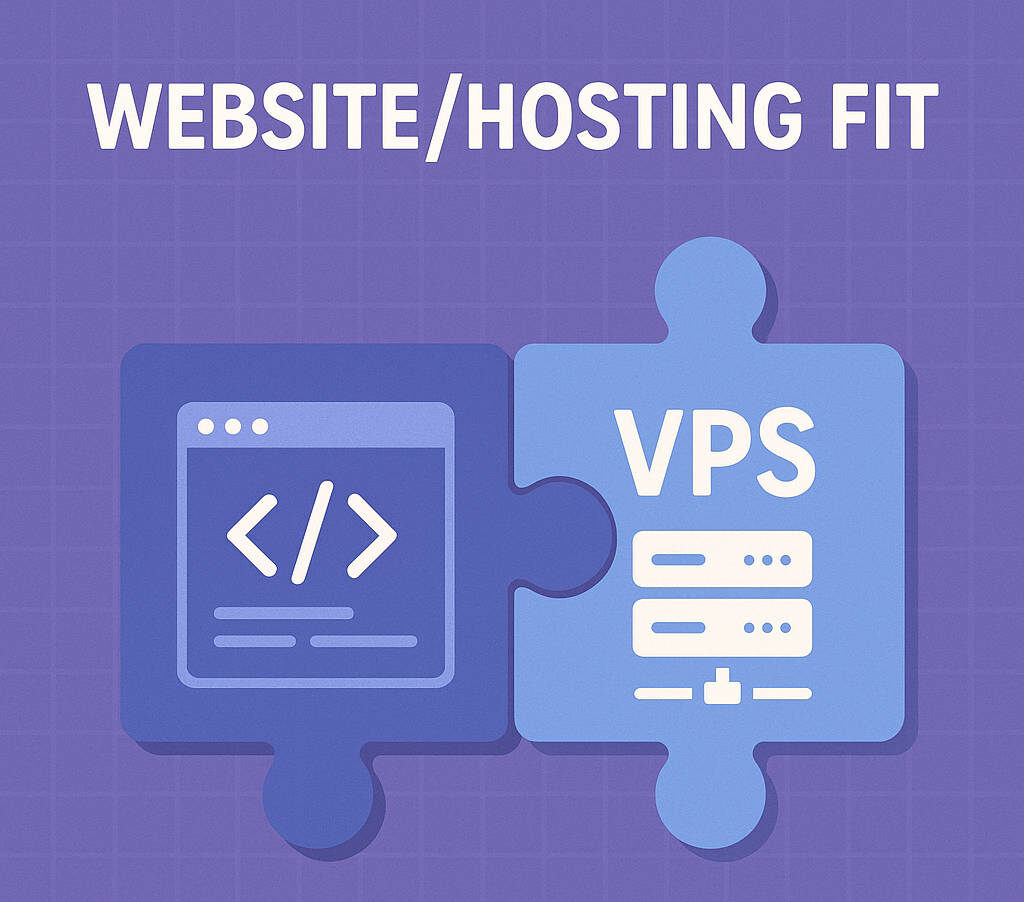
The truth is that the hosting environment needs to be suited to and tweaked to the KIND of website you’re running. In other words, your hosting and your website need to be paired together properly. Not all sites should get the same kind of hosting.
The problem with typical web hosting companies is that they are “one size fits all”. It is a numbers game for them, so their interest is to tweak the environment to best suit the average WordPress site.
These are usually front-facing, consumer driven companies where the typical client doesn’t know much at all about web hosting. The typical client just wants to trust a nerd to handle it all for them. 🤓 Under the hood, that hosting environment is tweaked to fit the typical type of client and with the least troublesome settings. But, clients have essentially no control over that hosting environment. That’s by design because…. most clients wouldn’t even know what they’re looking at.
Rocket.net is an awesome web host if almost all of your traffic is public, non-logged-in users. The typical WordPress site or WooCommerce store will perform very well on Rocket. But, put a WordPress membership site on there that might be running 40-50 plugins and you have people browsing the site without being logged-in…. and you’ll find Rocket.net feeling a little spongy. It will be most noticeable in the admin panels of WordPress.
The same would go for pretty much any consumer-facing hosting company. Most of them are tweaked for typical WordPress sites that can be aggressively cached. The moment you can’t cache it like that and you’re dependent on raw horsepower alone, most companies begin to choke.
So, you take the typical managed WordPress host… and whether you bring in a big Buddyboss site or a 5-page brochure site, the hosting environment is the same. Rocket will run you $30/mo for one site irregardless. Other managed hosts (like Flywheel, WPEngine, Kinsta) run about the same. Same price, same hosting…. but different needs depending on YOUR website.
Website/Hosting fit is the top consideration.
Why I Recommend A More Customized Approach
The typical hosting brands out there are “one size fits all”. Your site is just one of likely thousands they have on their servers and they don’t really treat your site any differently than the rest. And typically your options to tweak things are minimal because you just trust them to handle it.
I am a fan of a more customized approach to web hosting. One where the hosting is more precisely tailored to the kind(s) of sites you’re hosting.
By taking on a little bit more responsibility, you can set your website up with a hosting environment much better suited for it. You can ensure good website/hosting fit. Not only that, but it is almost always WAY cheaper.
Truth is, if you have a small little WordPress site with a typical blog and a handful of pages in your top navigation, you can get away with the most basic web hosting. Just ensure good caching and that thing will scream in almost any environment. If that’s the case, why overpay for a “one size fits all” managed host that might be tweaked for way bulkier sites than you have?
On the flip side, if you’re running a membership site (let’s say, a BuddyBoss community) with 40-50 active plugins, you’re going to need a very different kind of hosting environment. One with more server horsepower, object caching, good buffer sizes on your database, etc.
Yes, this is a little more nerdy. But, trust me, it isn’t that hard at all… even for a newbie. And in this post, I will guide you through my recommended setup.
Use A Virtual Private Server (or VPS)
Instead of a “one size fits all” approach that may not be the proper fit for you, my recommendation is that you use a virtual private server (or VPS).
A virtual private server is a private hosting environment that you can control the way you see fit. It isn’t a full server, but instead part of a server. That word “virtual” means that the provider is using software to basically split the main server up into little “baby servers”. Each one of those VPS servers operates as it’s own environment.
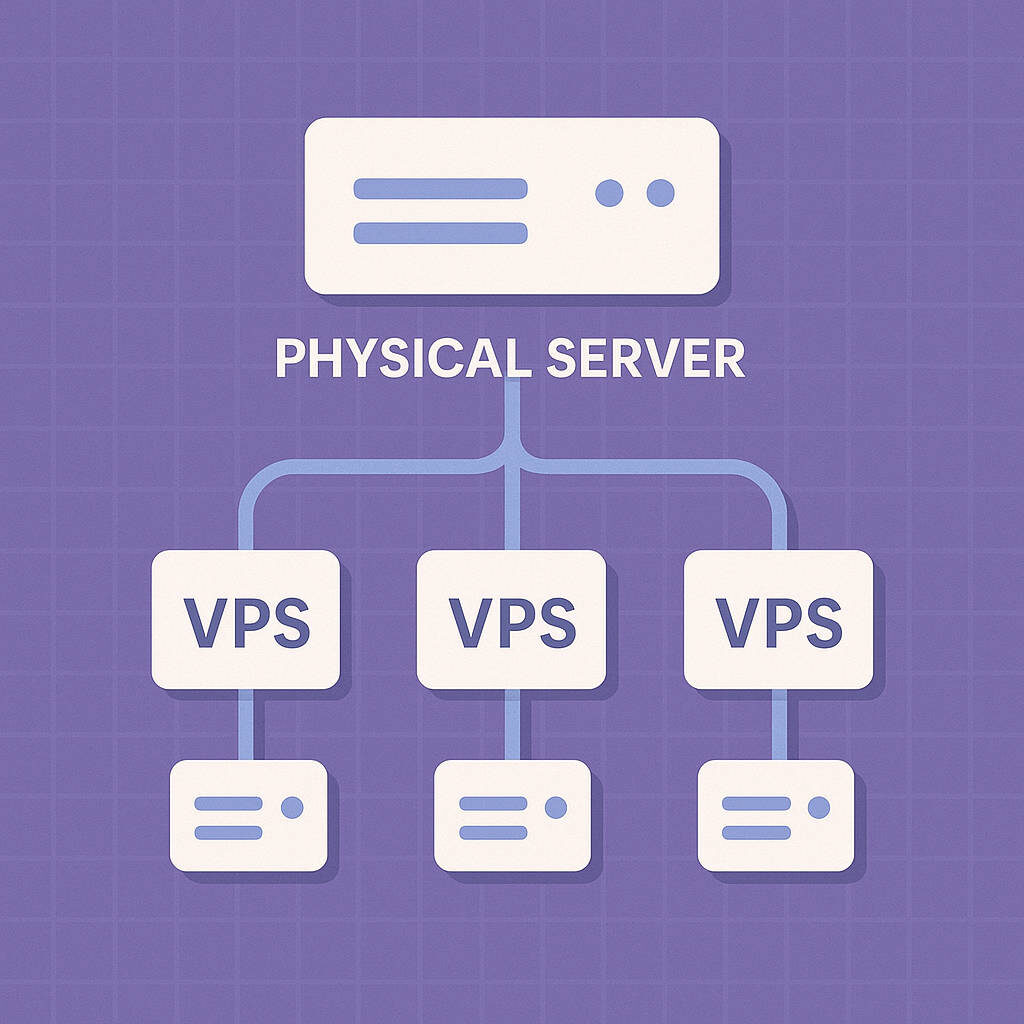
Think of typical shared hosting as living in a big apartment building. You have your own apartment, but you share resources with the other tenants of the building. And if somebody throws a loud party upstairs or uses up all the hot water by running their shower all day, your own experience in your apartment can be affected. On shared hosting, your own site’s performance can be affected by “noisy neighbors”.
With a VPS, you can think of it more like getting your own private house on a larger plot of land. You still live on the same street with your neighbors, but your own home has it’s own utilities and resources. You can paint the walls and decorate the way you see fit…. as long as you stay confined to the size of your home. That’s how a VPS works.
A VPS gives you your own private slice of a more powerful web server, often with guaranteed resources (like RAM, CPU, etc.) that no other websites can take from you.
This sounds great for big sites that are more resource hungry (and it is), but it can also be a great for smaller sites as well. By going with a VPS, you can start out small if all you need is a little tiny home… or scale it up to a massive mansion if that’s what you need.
And you can get these VPS servers for as little as $4/month. So, even if your requirements are small, you can almost always get FAR better site performance and more resources – for LESS money – by going the private route versus one of the big-name hosting companies.
How To Use A VPS (Without Pulling Your Hair Out)
There are numerous companies out there which offer VPS servers. Some of the top providers out there are:
Frankly, the list goes on. There are a lot of them. The ones I have directly worked with are Digital Ocean, Vultr and Hetzner.
With Digital Ocean, they call their VPSs “droplets“. Their cheapest droplet is $4/mo and it goes up from there depending on the allotted hardware. Digital Ocean acquired Cloudways awhile back, so now you can grab your own VPS through Cloudways and it makes it easier to manage (more on this in a bit). You do pay more than if you were to buy it directly, but that is for usage of the Cloudways software.
Vultr is a solid provider and I personally prefer them over Digital Ocean. Their VPS servers start at a puny $2.50/mo and go from there. Of course, such a server would be so puny that it’d be all but useless, so a server of minimum specs for a basic WordPress site would start at $5/mo and go from there.
Hetzner is a German-based company, but with data centers here in the US as well. I really like Hetzner because you get more horsepower for your money. Prices vary depending on which data center you put your server in.
Now, the thing about a virtual private server is that it is pretty “raw” by default. If you were to sign up for a VPS directly with one of these providers, it would be a VERY nerdy experience to set it up to do anything. We’re talking command line hell. 🤪 It would be like giving you a computer with no operating system and no software and you’re just left to your own devices.
So, it is a rare (and nerdy) bird that would want to manage their own VPS without the help of a management software panel. A good management panel will connect to your VPS and enable you to manage it using a software interface that actually makes sense.
There are many different VPS management panels to choose from as well, from companies such as:
- Cloudways
- RunCloud
- Gridpane
- ServerAvatar
- CloudPanel
- xCloud (my preferred 👍 )
And yes, there are others. CloudPanel is a free option you can install to your VPS and be off to the races. The others I listed are actually companies that do active development and support for their panels and clients.
So, when you are using one of these panel companies, what you’re actually paying for is the management software and their support. The actual VPS server would be through one of the VPS providers (and often billed separately). This is a pretty different setup than something like Rocket where you pay one bill for everything.
These VPS panels will install all the necessary software to your VPS (sparing you command line hell) and enable you to manage it via a simple user interface. While you will have more options available to you than a typical web host, it isn’t usually difficult at all.
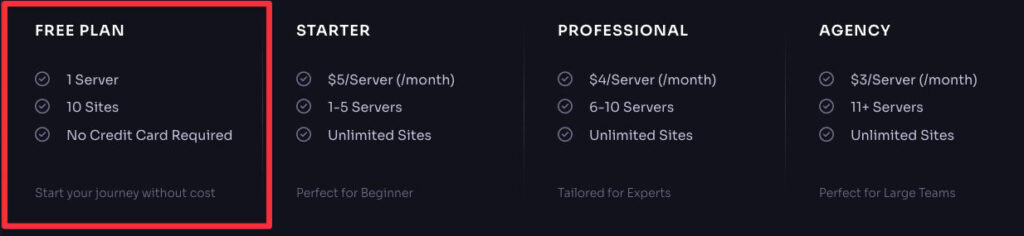
And to give you an idea of cost, if you were to go with my preferred combination on this – xCloud and Hetzner – and get a pretty nice hosting setup which is a great fit for most blogs, you would pay $5.59/mo for the VPS and xCloud would be FREE.
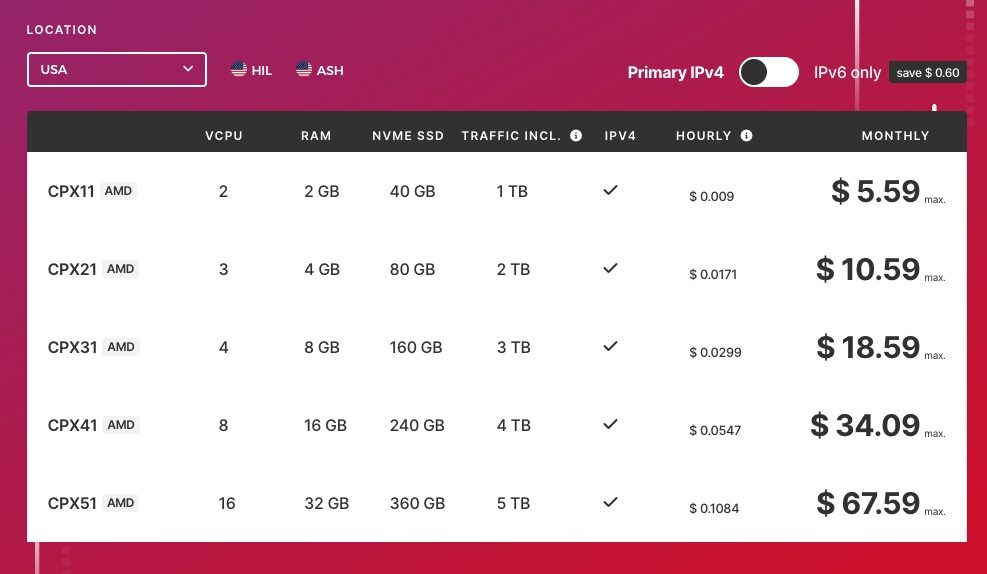
You would have a VPS with 2vCPU and 2GB RAM with 40GB of disk space. Fully dedicated to you. For just $5.59/mo. This server isn’t going to be suitable for a membership site, but for most blogs it would be perfectly fine and probably WAY faster than most big-box hosting companies.
How To Choose A VPS
There are three primary considerations when it comes to choosing a VPS. They are:
- Provider
- Data center location
- Server specs
When it comes to provider, it really comes down to personal preference. As I said above, I have personally worked with Digital Ocean, Vultr and Hetzner. The ones I prefer are Vultr and Hetzner. I am now using Hetzner primarily because I feel they offer better performance options for the money. I’m very satisfied so far with Hetzner as my server provider.
The data center location is literally the building that the servers sit in. We don’t often think about that, but the servers which power our websites are sitting someplace on the planet and location matters. One consideration is physical proximity to you (closer the better, usually) and the other is just infrastructure into the data center to ensure strong, reliable internet. Not all datacenters are equal in this regard.
Personally, I put most of my servers (for myself and my US clients) into the Hetzner data center in Ashburn, VA. Ashburn is known as “data center alley” in northern Virginia (see this map). The infrastructure there for datacenters is respected worldwide which ensures high speeds and low latency. For my clients in the EU, I place their sites in one of Hetzner’s datacenters in Germany (where the company is actually based). Placing the sites as physically close to the client gives a slight advantage in terms of speed while that client is working on their own site.
And then there are the server specs. While a VPS is like a private home, it can be a little starter home or a big mansion. You’ve got to pick one that best suits your website.
There are a handful of specs you’ll need to consider:
- vCPU – Virtual CPU cores. The more vCPUs, the faster your server will be able to “think”. It will be able to process more data faster and perform operations faster the more vCPUs it has.
- RAM – Just like the RAM on your desktop computer. RAM gives the software breathing room to operate.
- Storage – Just disk space on your server. Usually, it will be far more than you’ll need. It does include space for the software, too. Just like space on your desktop hardware is taken up by Windows or MacOS.
- Bandwidth – How much data can “flow” from your server each month. For instance, if you have 1TB of bandwidth, it means that your server will be able to send 1 terabyte of data out to the open internet (to web visitors) per month. Again, most of the time, you’ll never hit the cap so this is not usually something you need to worry about.
In most cases, you’re going to have more than enough storage and bandwidth even on the cheapest VPS servers. Where you need to think a bit more is on vCPUs and RAM.
Here are some basic guidelines, based on my own experience:
|
Website Type |
vCPU |
RAM |
Notes |
|---|---|---|---|
|
Typical blog, portfolio, static site. |
1 vCPU (2 if you want faster admin panel) |
2GB RAM |
Such sites can be cached heavily, so don’t usually need much horsepower. Depending on number of plugins, might want 4GB of RAM. I consider 2GB to be minimum for a live website. |
|
WooCommerce, small membership site |
2 vCPU minimum (4 would be better) |
4GB RAM (or higher) |
Such sites have more dynamic elements. They can be cached publicly, but logged-in users will experience the server directly. |
|
Larger membership site, w/ community, online courses, etc. |
4 vCPU (or higher) |
8GB RAM (or higher) |
More simultaneous logged-in users. Usually more plugins active. This means more horsepower needed. Needs go up depending on traffic levels. |
|
Multiple sites |
4 vCPU (or higher) |
16GB RAM (or higher) |
You can definitely put multiple sites on one server, but you want to ensure the collective activity of all of them is accommodated in the server specs. |
Keep in mind, these guidelines are not set in stone. Not only that, but one of the great things about a VPS is that you’re not “stuck” with any particular server. You can scale it up as needed. So, my recommendation would be to start out with a lower-level server that you feel would be appropriate and test it out. If the site doesn’t feel fast enough, just scale up to the next level. You won’t need to move your site to do that.
One of the great things I prefer about a VPS is that you KNOW what your hardware specs are. You can pick and choose your best website/hosting fit. On most cloud hosting companies, they won’t even tell you about the hardware. Not only that, but that hardware is most definitely being shared with a LOT of neighbors. It is in their interest to obfuscate the hardware specs as well as how many sites they stick on one server. Personally, I’d prefer to know and have some control over it.
How To Set Up Your VPS Server
OK, so let’s assume you’re going to build your own customized hosting environment on a virtual private server. You’re willing to take on a bit more responsibility in exchange for the power and flexibility that comes with it. You want to get top-level performance specific to your own requirements. Great!
As I said above, there are many options to choose from. However, my personally preferred combination is: xCloud Hosting Panel + Hetzner VPS cloud servers.

If you use xCloud, you can also choose to use their “managed” servers. If you go that route, you will be using Vultr as that is their provider. It is a great option and it just means a little higher level of “done for you”. In actual practice, however, it isn’t much different than if you were to use your own server. If you go the “managed” route, it just means you will do everything inside of xCloud.
I personally prefer Hetzner. The main difference with this is that you need to have your own account with the provider. If you go with any VPS provider other than their “managed” option, you need to have your own account. So…
Go to Hetzner.com and sign up for an account. You will jump through a few hoops but it isn’t difficult. You will not pay for anything right away because you don’t have any servers yet. You’re simply creating your account so that you can get API keys and plug them into xCloud.
Next, sign up for xCloud. For just one server with up to 10 sites on it, you can use it for free. Pretty awesome! 😎 From there, it brings on a low monthly cost per server.
Once you have both accounts, you can follow xCloud’s documentation on how to spin up your first server within Hetzner. It involves pasting your API keys from Hetzner into xCloud so that xCloud can tell Hetzner what to do. 😉 Then, once that connection is made, you will create your server from within the xCloud control panel. Typically speaking, once you’ve connected your Hetzner account to xCloud, you’ll almost never need to log into your Hetzner account. All of your day-to-day management is done within xCloud itself.
Now, when you go to create your server, you will need to make some choices. Things like server software, database type, etc. So, let’s discuss that…
Server Data Center
Typically speaking, you would place your VPS into a data center which is physically closest to the typical users of that server. If it is just you, then choose a data center closest to you. If you’re going to have others on there as well, then average it out.
The location of your typical web visitors matters, too. However, keep in mind that caching and usage of a CDN (like Cloudflare) do a LOT to minimize the importance of physical location of the server in terms of speed. Mostly, you want to think about the typical person who will be working with the site “raw” (as in without caching) and put the site as close to them as is reasonable.
As an extra measure, it doesn’t hurt to ask AI (like ChatGPT or Grok) for feedback on data centers. For instance, Hetzner has two data centers here in the US – one in Ashburn and the other in Oregon. I originally thought having a server in the Oregon data center for my western US clients might make sense, but upon further research I gathered that the overall speed of the Ashburn data center is superior. Even my western US clients will likely see better performance from the Ashburn data center in Virginia than if I were to put it into Oregon.
Vultr has more data center options, so if you really want closer physical proximity, perhaps Vultr would be a better fit for you than Hetzner. I still have one server with Vultr and I have it in their Dallas data center. I figure it is right smack in the middle of the country, so it is rather centralized to anybody here in the US.
Server Size / Specs
This is where you will choose the desired specs of your VPS. As you would expect, your cost increases the more vCPUs and RAM you get.
Hetzner also complicates it with a couple of options:
- Intel versus AMD. We’re talking actual CPU types. Brings me back to my tech blogging days. 😜 But, you’ll notice that Intel servers are cheaper than AMD. And that’s because Intel processors (at least at Hetzner) are slower and older. Their newer stuff is AMD. So, I’d just stick with AMD. With Hetzner, there’s literally no reason to use Intel.
- Shared versus Dedicated. This comes down to whether the hardware specs are FULLY dedicated to you – or not. The cheaper options are shared. This means you will have the capacity to use those chosen server specs, however internally Hetzner is pooling those things with other clients. On a dedicated VPS, then those hardware specs are siloed off so that you are the only person who can use it. In most cases, a shared plan will work perfectly well and you won’t even notice. But, if you want that extra security of knowing that no neighbors could possibly affect you, then go dedicated.
Keep in mind, you can change your mind on this stuff. With Hetzner, you can scale a server up and down as needed. You cannot scale it within xCloud – you’d need to do it directly within your Hetzner account. Not all providers are as simple, however. For instance, Vultr allows you to scale up, but not down. So, my suggestion globally is just to start off with what you think you can get away with… knowing you can get more “juice” later if you need to.
Database Type
xCloud gives you the ability to use MySQL or MariaDB. This is where the non-nerds can start to go cross-eyed. 🤪
In essence, there’s barely any real-world difference. WordPress will work just fine on either one and you’re not likely to notice anything at all. That said, I would usually pick MariaDB just because it is a little bit faster. MySQL has a little more backward compatibility, depending on your needs. But, since we’re using WordPress here…. just use MariaDB and call it day.
Web Server Software
All of these software panels (Cloudways, RunCloud, Gridpane, xCloud, etc.) all install what is called a “tech stack” onto your VPS. This “tech stack” is just a compilation of the software and settings which turn your VPS from a random blob of computing power into an actual web server.
Not all tech stacks are equal. Depending on the software being used, it can affect the performance of your sites.
For instance, up until recently, Cloudways has been considered to be a little bit outdated and slow compared to other panels. Take the exact same VPS server specs and sites would be a wee bit slower on a Cloudways-managed server versus something like xCloud. The difference is the tech stack. Cloudways used a slower tech stack with Apache on the backend, Varnish full-page caching, and nginx as a reverse proxy. Apache was the slowdown point. Varnish is also slow.
xCloud offers nice tech stacks, but you have options. They are Nginx and OpenLiteSpeed. They also now offer Docker, but that’s for an entirely different thing than WordPress. So, which web server type should you choose?
- Nginx. Incredibly fast server software. Probably a little better suited to static, typical WordPress sites. Serves static files incredibly fast. Lots of support and lots of flexibility, which is why so many web hosts use it.
- OpenLiteSpeed. Litespeed servers are also incredibly fast, but a little better tailored toward lots of PHP requests (typical on ecommerce stores, membership sites, etc.). Also works tightly with the Lightspeed Cache plugin for tons of performance control.
xCloud has their own writeup on Nginx ver OpenLiteSpeed. My rule of thumb is this:
- For mostly static, cached sites or smaller sites, I will put them onto Nginx.
- For more dynamic sites (like membership sites that don’t use caching as much), I will use OpenLitespeed.
Keep in mind, these are not hard and fast rules. In practice, any kind of site will run just fine on either software stack. But, if I had to pick one that would be most universal to any kind of WordPress site, I’d go with OpenLiteSpeed.
Tweaking Your Server For Best Performance
Once you’ve made your server choices above and smack the button. xCloud will do it’s thing. It will create the server for you, install all the software, test everything, etc. When it is done, you’ll have yourself a web server ready to rock and roll. You can then install a WordPress site to it and do your thing.
Now, one of the things about managing a VPS is that you have more control over the “innards” than you would on a typical big box web host. While that can feel a little nerdy, it also means you’ve got power and flexibility to tweak. And don’t forget….
Software matters. A LOT. Not only the selection of software (which you chose above), but the settings of that software do a LOT to impact the performance of your website. It all goes right to the heart of your website/hosting fit. For the right kind of WordPress site, combined with the right tweaks of the settings, you can make your site scream even on lower-level VPS servers. And save yourself a ton of money in the process.
So, let’s go over a few performance tweaks you’ll want to check out once you have your server setup. Keep in mind, I am keeping this rather surface-level and limited to what you can change in the xCloud interface. Obviously, you can get pretty nerdy with your server if you wish, but I’ll leave that to a different setting. 😜
PHP Settings
PHP is the programming language that software like WordPress is built with. And for PHP to work, it has PHP software on your server which comes with it’s own settings. You can also run different versions of PHP on different websites if needed. Some things to watch are:
- PHP Version. As of this writing, PHP 8.3 is the typical version in use and recommended. If you find you need a lesser version, you can install it with the click of a button. Generally speaking, newer versions are a little faster. Here’s how to manage PHP versions in xCloud.
- PHP OpCache. Each PHP version has a toggle for OpCache being turned on. I find it is often off by default, so you want to ensure this is enabled as it will definitely increase the performance of your site. Here’s how to control the OPCache in xCloud.
- PHP Memory Limit. You can manage your PHP configuration in the xCloud panel. Most of the default values are perfectly fine, but you want to watch the “Memory Limit”. This is basically a cap on how much RAM each PHP process is permitted to take. The larger the number, the more breathing room PHP has. For sites running more plugins, you’re going to want higher numbers. It needs to be balanced with the amount of available RAM your server has to begin with. If you have a 2GB server and a memory limit of 512MB, that means your server is only capable of running 4 large concurrent PHP processes at once before it will start hitting the swap file (the disk) and really slowing down. See this writeup on how to increase the memory limit in xCloud.
Many times, I see default values of 256MB for the PHP memory limit. For most WordPress sites, that’s fine. However, I’ve definitely watched WordPress sites choke to death because of this number being too low. I once saw a client on Rapyd hosting (which is supposed to be great for BuddyBoss sites) having her site choke with database errors and seemingly random weirdisms…. all because I found that she had a 256MB memory limit. Which is WAY too low for a BuddyBoss site running Elementor.
I would say 256MB as a baseline. 512 for more breathing room. And for larger sites running a lot of plugins, you may even want to ramp it up to 1024MB. But, you definitely need to ensure you have enough hardware RAM to do it.
With most big box managed hosts, you don’t even have the ability to alter this setting. Some enable you to. Unless your host defaults to something high, I would be concerned if I didn’t have the ability to alter that option to my needs. I was shocked to find a client using Rapyd with a 256MB memory limit and no option to change it in the panel, whereas Rocket.net defaults to 1024MB which is high enough you won’t need to change it.
Database Settings
Just like the PHP software, your database software has settings, too. And those settings can do a LOT to impact your site performance if they’re not set appropriately.
The biggest impact is your “buffer pool size”. In essence, it means your server can cache database queries in the RAM and that makes everything faster. If your buffer size is too small, then your database queries end up hitting the disk much more frequently and that slows things down.
Surprisingly, when I first spun up servers with xCloud, I found that the buffer pool sizes were WAY too small. Ranging from just 16M up to 128M. Mind you, a good rule of thumb on this is to set the value at more like 50%-70% your available RAM. So, if I had an 8GB server, I’d want that buffer pool size to be about 4GB at the least. That’s literally 256X the buffer size! But, if I hadn’t checked, I wouldn’t have noticed.
So, the numbers I check are:
- Max allowed packet. Dork talk, but has a bearing on how really big database queries are handled. I set this at around 256M.
- InnoDB Buffer Pool Size. I would set this minimally at 50% of your available server RAM.
- Sort buffer size. I aim a little high on this, setting it to 2M.
Here’s the writeup on xCloud on how (and where) to edit these settings.
Per-Site Settings
Each WordPress site you install to your server can have it’s own settings that also impact how well it runs. So, let’s go over a few of them…
- Caching. Depending on whether you use Nginx or OpenLiteSpeed, you’ll have different caching options. Either way, enable it. With Litespeed, most of your caching settings will be controlled within the LiteSpeed Cache plugin in WordPress, but you do want to ensure it is turned on via xCloud. Turning it on will auto-install Litespeed Cache.
- Object Caching. Object caching almost always speeds things up. For nginx servers, you’ll have Redis Object Cache and you should enable it. For Litespeed, you also have Redis however it is controlled via the Litespeed Cache plugin. xCloud does have the option for Object Cache Pro, but this is a paid license that is not included with xCloud. Standard Redis is perfectly fine. Litespeed servers also have MemCache has an option for object caching, but I typically prefer Redis as it is usually faster.
- Cloudflare Edge Cache. If you run your domain DNS through Cloudflare, you can Edge Cache your site. This will cache site elements on the Cloudflare network and place it closest to your web visitor like a CDN. Recommended in most cases.
- PHP Version. Each site on a server can run it’s own PHP version. Generally, I’d use the highest available. PHP 8.3 tends to be the standard right now.
- Memory Limit. You can individually control the memory limit for each site. This will override the server-level memory limit you defined above. So, for instance, let’s say you have several smaller sites and one larger one on the same server. You could keep your server memory limit at 256M, but give the larger one a 512M or 1024M limit so it has more breathing room.
- xCloud-Cron. xCloud makes it really easy to switch from built-in WP-Cron (which would trigger based on web traffic to your site) to a server-level cron (which is traffic independent). For busy sites, WP-Cron can be a performance drag. Generally, I would recommend using xCloud-Cron with the default 5-minute interval.
I’ll leave the rest for you to poke around. This isn’t exactly a tutorial on all things WordPress performance. 😜
Be Sure You’re Aware Of This…
Many of the big-box web hosts do an “all in one” kind of service. Meaning, you can register your domain, set up your website, manage your email…. all in one spot. It is convenient, yes. It also makes it harder to leave.
I am a big believer in using the best company and tool for the job it is intended for. The “all in one” hosting companies may do it all, but likely don’t excel at any of it. I’d rather buy my domain at the registrar of my choice. I prefer to manage my domain DNS at Cloudflare because it’s capabilities FAR surpass what any web host can do. I’d prefer to host my email with a solid email provider like FastMail.com rather than some cheapo POP3 email at some cheapo web hosting company. And I’d rather set up my site with the best hosting I can find.
Rarely will you find the best for everything all under one roof. And there’s simply no reason why you even need to try.
So, when you sign up for a virtual private server and a management panel like xCloud, realize that you’re mainly taking care of your WEB HOSTING.
You will buy your domain elsewhere (I personally like Namecheap).
You will manage your domain DNS elsewhere (I personally prefer Cloudflare for numerous reasons).
You will manage your email elsewhere (I personally prefer Fastmail, but you can use any service you like). Here’s how to separate your email hosting from your web hosting.
And you’ll manage your websites on xCloud.
You can use different companies. It’s easy. No need for everything to be in one spot. The “big box”-ers do that for convenience for people who don’t know how to split them up. I get it. But, the whole theme here is that if you go just one level deeper here, you’ll get FAR better services… usually for less money.
Let’s Review (The Big Picture)
While a lot of web hosting recommendations concentrate on the big-box name brand companies in the industry, I take a different approach. That’s because my interest is in you having the best possible hosting performance for your money. My interest is not the affiliate commissions.
The “big box” guys do a great job. I have positive things to say about many of them, especially Rocket.net. I think they’re great. But…
They are “one size fits all”. And I think having more control means you’ll get a far better hosting experience.
For about the price of one single site on Rocket.net ($30/mo), you could secure a 4vCPU/16GBRAM server with Hetzner – with fully dedicated resources – in their Ashburn data center (which is exactly where Rocket’s data center is, too). For one server, xCloud would be free. Your performance with that one Hetzner server will blow the SNOT off of Rocket.net. Not only that, you could host as many sites as you want (10 of them for free with xCloud). Versus just one single site with Rocket.
Ya feelin’ me here? 😎 😇
The cost/performance difference is huge. When you take a bit more control and go with a VPS, you get FAR more performance for your money than the top-level “big box” hosting guys. It isn’t even close.
This is why my official top hosting recommendation isn’t really a company at all. It is a tailored approach – built to your own needs. I personally highly recommend usage of the xCloud panel to manage your VPS. They are doing great things, their pace of development has been impressive, and their live chat support has actually been pretty good.
If you really want that hand-holding and blind trust of a larger company brand, then by all means go with a larger hosting brand. That’s what they’re good at. Some even still offer support over the phone if that’s important to you. If that’s the case, then you have to use the company which fits YOU. But, for true website/hosting fit? It is a virtual private server every time.
Want My Help?

I’m fully aware that, to some, while it makes perfect logical sense to go this route because you’ll get FAR more for your money, it still feels daunting and technical.
Trust me, it isn’t that bad at all. But, perhaps what would make all the difference to you if just a helping hand. So, I have two options for you:
- Concierge. Yes, if you enroll your site in the Concierge service with me, I handle all of this for you. This is the exact setup I use for my Concierge clients and I have some pretty beefy servers, too. 😎 But, I also do a lot more than just your hosting when you’re in Concierge. It is a fully hands-off thing where I will handle pretty much anything for you – and even help you work on your site as needed. Click here to learn more about Concierge.
- Implementation Session. If you want your own accounts and to be in control of all of it, no problem. You can still book an Implementation Session with me and we will hop on a call together and I’ll help you set things up, tweak the settings, and show you around. I’ll share my screen and you can see the whole thing – and I can even record it for you. The goal will be that, by the end of the call, you will not feel overwhelmed at all by this method of web hosting. It will make sense.
OK, now onto some questions…
Common Questions, Quick Answers
If you have any other questions, feel free to contact me and I’ll be happy to answer.
Popular Right Now

What If Your Website Was Just… Handled?
I manage WordPress sites for creators and small teams who don’t want to fight tech anymore. Hosting, updates, security, performance — plus a real human you can ask anything.
Tools, checklists, and resources for solopreneurs who want to spend less time on tech — and more time growing. With more tools coming regularly. 😎

