

When you need something done on your site, there are three ways to get it to me:
- A to-do in your Basecamp project. This is the best way, and most of this page explains how.
- The Service Request form in your account (it’s also on your account dashboard). Handy if you’re already logged in on BlogMarketingAcademy.com. I’ll follow up with you about it.
- Email at techservices [at] blogmarketingacademy.com. If your site is down or genuinely broken, put “urgent” in the subject and I’ll jump on it.
Why a To-Do Works Best
Asking me to do something within a message thread or in the chat on Basecamp is fine, but it is more likely to get lost that way. When it is actually on the task list and assigned to me, it will not get lost. In fact, when you post a task this way, it is automatically synced to my task list right here in my home office. 😎
How To-Dos Work In Basecamp
First, go to the “To-dos” section in your Basecamp project.
This screen supports multiple to-do lists. If you click the “New list” button, it creates an entirely new list… not an individual task. You usually don’t need a new list. That’s really only handy if you want to group tasks together (for instance, for a particular project).
Generally, we only need one list. I usually just call it “To Do List” and you’ll see it on the screen. If not, you can create it.
Then add an individual to-do to that list by clicking “Add a to-do”. You’ll get these fields:
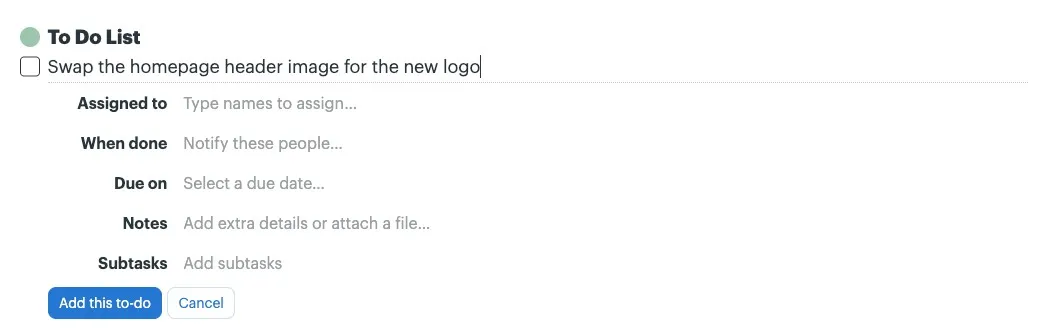
- Describe this to-do. The title of the task. Keep it short and specific. Think of it like a subject line… as if you were putting it on your own to-do list. The full details go in Notes.
- Assigned to. Blank by default. If it’s something for me to do, put my name here. This is the important one (more on that below).
- When done. If you want Basecamp to notify you when the task is marked complete, put yourself here.
- Due on. Optional. See the note on deadlines below.
- Notes. This is where you give me the full description and details of what you need done. You can attach files here too.
- Subtasks. Optional. If the job has a few separate steps, you can list them here.
Then click “Add this to-do” and it’s on the list.
You can also assign tasks to yourself and use Basecamp as a task manager for your own project if that’s useful.
Assign It To Me
If it’s a task for me, it really helps if you actually assign it to me. When you do, it lands on my radar… I get notified, and it shows up on my side to be done. An unassigned to-do can sit there quietly without me noticing it. I’ve asked Basecamp if there’s a way to auto-assign tasks to me and, as of now, there isn’t. So please put my name on it.
A Note On Deadlines
Feel free to give a task a due date. It gives me a clear signal of how soon you need it, and I make every effort to respect it. Realize, though, that I’m working with a lot of clients at the same time, so I can’t promise I’ll always hit your deadline. If there’s an issue meeting it, I’ll let you know.
If it’s not time-sensitive, just leave the due date off. We’ll still get to it. 😎
Comments And Discussions On Tasks
Basecamp has a full message board for back-and-forth discussion, but tasks have their own comment thread too. So you can post a task and we can work out the details right there, on that task.
It keeps things more organized that way. If we’ve had a full conversation on the message board about something, there’s no way to link it to a specific task. So it helps to keep conversation about a task in that task’s comments.
A Few Tips
- Keep each task specific. “Swap the homepage header image for the new logo” beats “fix up the website.” A task like “re-design my website” is way too big. Specific tasks get done faster, and we can both see exactly when one is finished.
- Keep titles and messages brief and to the point. The longer the message, the longer it takes to work out what’s needed… and that burns time.
- Bigger projects can get their own to-do list, with a task for each piece.
- Remember to assign it to me.